How to Rescue Your Water-Damaged Phone, Laptop, MacBook, or Other Device: A Comprehensive Guide
Water damage can happen in seconds. A spilled drink, an accidental drop into water, a leaking bag, or exposure to moisture can cause serious problems for phones, tablets, laptops, MacBooks, and other electronic devices.
Knowing what to do immediately after exposure to liquid can help reduce further damage. However, water damage can be unpredictable, and turning on or charging a wet device can make the problem worse.
At Computer and Mobile Repair LLC in Madison, TN, we provide professional water-damage inspection and cleaning services for a wide range of device models and brands. Our family-owned business has proudly served Madison and the surrounding communities since 2015.
Which Devices Can Suffer Water Damage?
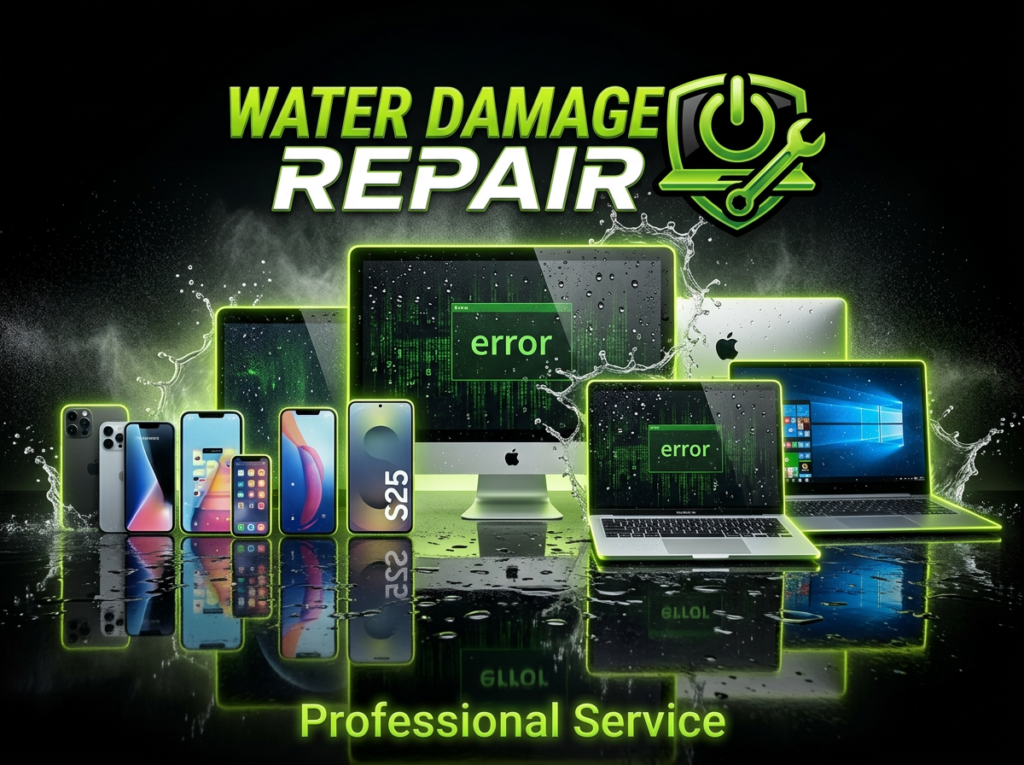
Liquid damage can affect almost any electronic device, including:
- iPhones and Android phones
- Samsung Galaxy, Google Pixel, and Motorola phones
- iPads and tablets
- Windows laptops
- MacBook Pro and MacBook Air models
- Desktop computers and All-in-One PCs
- Smartwatches
- Gaming devices
- Other electronic devices
Even water-resistant devices can suffer internal damage when exposed to enough liquid or moisture.
Step 1: Turn Off the Device Immediately
If your device is still powered on after liquid exposure, turn it off as soon as possible if you can do so safely.
Do not continue using the device to check whether it still works. Electricity and moisture inside an electronic device can cause short circuits and additional internal damage.
Step 2: Do Not Charge the Device
One of the most important things to remember is** not to**** charge a wet device.**
Connecting a wet phone, tablet, laptop, or MacBook to a charger can cause electrical damage to internal components.
Even if the outside of the device looks completely dry, moisture may still be trapped inside.
Step 3: Disconnect Accessories and Power Sources
Remove any connected accessories when it is safe to do so.
This may include:
- Charging cables
- USB devices
- Headphones
- External drives
- Memory cards
- SIM cards
- Removable batteries, when applicable and safe
For laptops and MacBooks, unplug the power adapter immediately.
Step 4: Remove the Case or Cover
Remove protective cases, covers, or other external accessories that may trap moisture against the device.
Gently dry the outside with a clean, soft, absorbent cloth.
Do not shake the device, as this may cause liquid to move deeper into the internal components.
Step 5: Keep Ports Facing Down
When possible, position the device so that charging ports, headphone ports, and other openings face downward.
This may allow some liquid to drain naturally rather than flow deeper into the device.
Do not aggressively shake, hit, or spin the device.
Step 6: Do Not Use Heat
Never use a hair dryer, oven, microwave, heater, or other direct heat source to dry an electronic device.
Excessive heat can damage:
- Batteries
- Screens
- Internal cables
- Adhesives
- Circuit boards
- Plastic components
Allow the device to remain in a dry, ventilated area until it can be professionally inspected.
Step 7: Do Not Put Your Device in Rice
Putting a wet phone or laptop in rice is a popular internet recommendation, but it is not a reliable solution for internal water damage.
Rice cannot properly remove moisture trapped underneath shields, connectors, batteries, and other internal components.
Small particles may also enter charging ports and other openings.
Professional inspection and internal cleaning are safer options for a water-damaged device.
Step 8: Do Not Keep Testing the Device
Many people repeatedly press the power button after exposure to water to see if their device still works.
Avoid doing this.
A water-damaged device may initially turn on and appear normal while corrosion or electrical damage develops internally.
Repeatedly powering on or charging the device may worsen the damage.
Step 9: Bring the Device for Professional Inspection
Water damage can affect components that are not visible from the outside.
A professional technician can inspect the device for signs of:
- Internal moisture
- Corrosion
- Battery damage
- Charging problems
- Damaged connectors
- Short circuits
- Display problems
- Motherboard or logic board damage
Depending on the device’s condition, professional cleaning, additional diagnostics, parts replacement, or data recovery services may be recommended.
What Happens During a Water Damage Inspection?
The inspection process depends on the type and condition of the device.
A technician may:
- Inspect the exterior for signs of liquid exposure
- Open the device when appropriate
- Check for moisture and corrosion
- Inspect the battery and internal connections
- Clean affected areas when possible
- Allow additional drying time
- Test the device and major functions
- Explain available repair options
Water-damaged devices may need to remain at the repair shop for 24 to 48 hours or longer, depending on the device’s condition and the services required.
Signs Your Device May Have Water Damage
Some water damage symptoms appear immediately, while others may develop over time.
Common warning signs include:
- The device will not turn on
- Screen flickering or displaying lines
- Touchscreen not responding
- Device overheating
- Battery draining quickly
- Charging problems
- Speakers sounding distorted
- Microphone not working
- Camera problems
- Keyboard or trackpad problems
- Unexpected shutdowns
- Device restarting repeatedly
- Visible moisture inside the screen or camera
- Corrosion around charging ports or connectors
Even if your device appears to work normally after exposure to liquid, internal corrosion may develop later.
Why Does Water Damage Get Worse Over Time?
Moisture and contaminants can remain inside a device after the outside appears dry.
Over time, corrosion can damage connectors, circuits, and other internal components.
This is why a device may continue working immediately after exposure to liquid but develop problems days or weeks later.
Quick action and professional inspection may help reduce the risk of additional damage.
Can a Water-Damaged Device Be Repaired?
Possibly. The repair options depend on several factors, including:
- Type of liquid
- Length of exposure
- Amount of liquid
- Whether the device was powered on
- Whether the device was charged after exposure
- Level of internal corrosion
- Condition of the battery
- Damage to internal components
Some devices may only require cleaning and minor repairs, while others may have extensive damage.
Water damage repair and data recovery results cannot be guaranteed.
What About Important Photos and Data?
If your water-damaged phone, tablet, laptop, or MacBook contains important photos, documents, videos, or other files, tell the technician before repair work begins.
Depending on the condition of the device and storage components, data recovery options may be available.
Do not repeatedly turn on or charge a water-damaged device to access your files, as this could cause additional damage.
Professional Water Damage Inspection in Madison, TN
At Computer and Mobile Repair LLC, we provide professional water-damage inspection and cleaning services for phones, tablets, laptops, MacBooks, and other electronic devices.
Our family-owned business has proudly served Madison, TN, and surrounding communities since 2015. We offer free basic diagnostics, clear explanations, and upfront pricing before repair work begins.
All services are performed in-store only. Depending on the device’s condition, water-damage inspection, cleaning, drying, and testing may take 24 to 48 hours or longer.
Because liquid damage is unpredictable, repair and data recovery results cannot be guaranteed, and liquid-damaged parts may not be covered by a standard repair warranty.
If your phone, tablet, laptop, MacBook, or other device has been exposed to water or other liquids, turn it off, do not charge it, and bring it to Computer and Mobile Repair LLC for a professional inspection.
Walk-ins are welcome Monday through Saturday from 10 AM to 6 PM, or schedule an appointment today.